
Your email is filtered. Here is how to work with it.
Two things sit between the internet and your inbox. A filtering service that adds a coloured banner to messages it is unsure about, and Microsoft quarantine, which holds back the ones it is confident about. Neither is perfect, and both are designed to be corrected by you. This guide shows you exactly which buttons to press, in which situation, and when to stop and call us instead.
The thirty-second version.
Find your situationIf you only read one part of this page, read this table. Everything below it is the same advice with pictures.
The banner on your email.
Messages that reached youA banner means the message was delivered, but the filtering service wants you to look twice before you act on it. The banner is a prompt, not a verdict, and your answer teaches the system.
Recognise the banner
At the top of the messageA coloured strip appears above the message body, with a short description of what the system noticed and a row of buttons on the right. The wording changes with the level of concern. A red Danger banner is the strongest warning; you may also see softer wording such as Caution on a message that is merely unusual rather than suspicious.

Tell the system what it really is
Three buttonsClicking one of the three buttons sends a report back to the filtering service. Choose the one that matches what you are actually looking at, because these reports shape what gets through to you and to your colleagues in future.
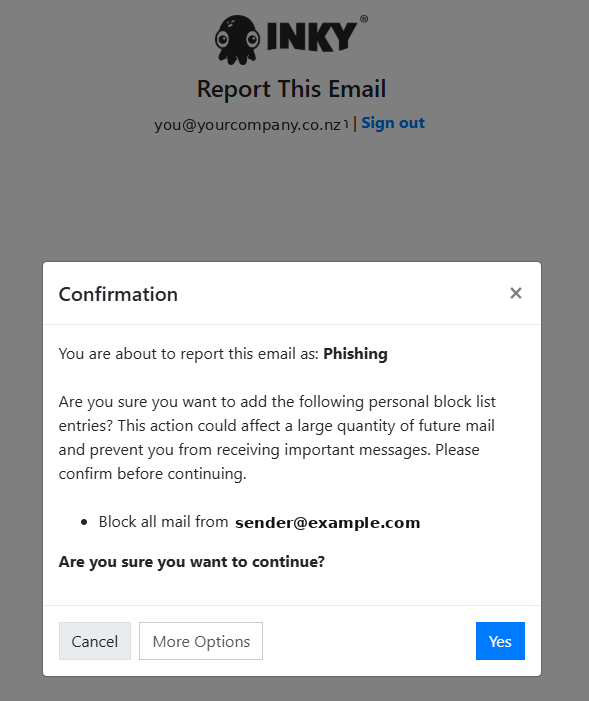
Confirm on the page that opens
Read before you click YesYour browser opens a confirmation page so a mis-click cannot change anything on its own. Read what it is about to do. In particular, a report can offer to block all future mail from that sender, which is exactly right for a persistent nuisance and exactly wrong for a supplier who happened to send one odd-looking message.
Not sure? Ask the system why
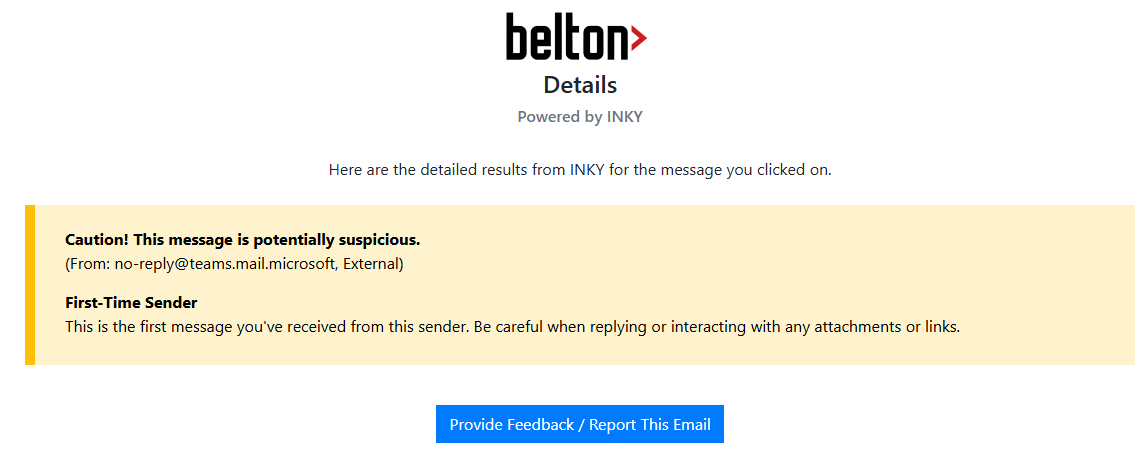
The Details buttonThe Details button at the far right of the banner opens a page that explains the reasoning: which sender it saw, whether you have heard from them before, and what specifically looked unusual. It is the fastest way to turn a vague worry into a decision, and it has a feedback button of its own if you disagree with the result.
Manage your own allow and block lists
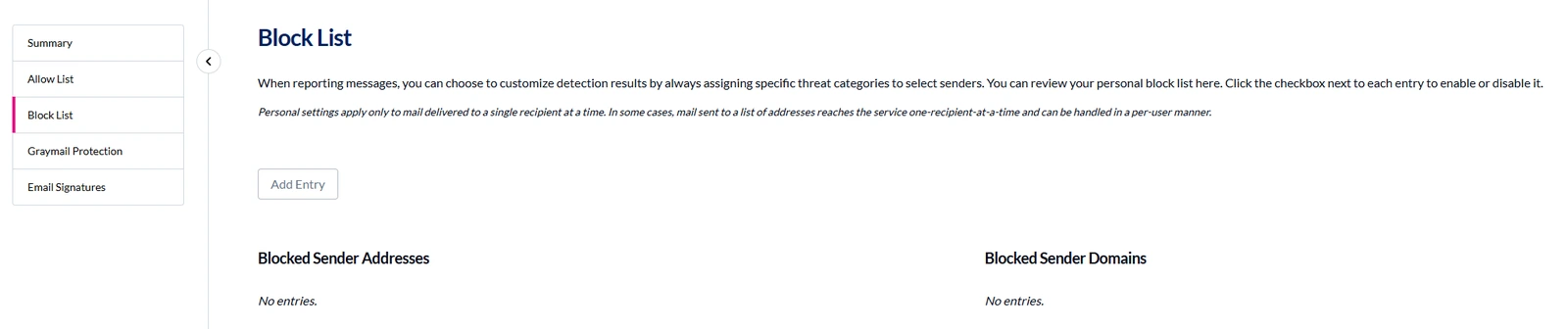
Your personal dashboardYou do not have to wait for a banner to appear before tuning your own mail. Go to app.inkyphishfence.com and choose Sign in with Microsoft, using the same account you use for email. Your dashboard has two lists that are yours alone.
- For legitimate senders you want through cleanly
- Useful for a supplier, client or system that keeps triggering banners
- Add the address once and the nuisance stops
- For spam and unwanted bulk or marketing mail
- Works on individual addresses and on whole sender domains
- Entries can be switched off again later if you change your mind
The most expensive mistakes we see start with someone clearing a warning simply to get the banner out of the way. Before you click Safe, satisfy yourself on three points: you were expecting this message, the sender address is genuinely theirs rather than a near-miss spelling of it, and nothing in it is pressing you to hurry. If any of those is shaky, leave it and ask. A message left sitting in your inbox for an hour has never cost anyone anything.
Messages held in quarantine.
Mail that never reached youQuarantine is the other half of the picture. Where a banner is a message that arrived with a question attached, quarantine is a message that did not arrive at all. Filtering is a judgement call made in milliseconds, so occasionally a perfectly good email is held back. That is what the release process is for.
You get a notification
Within 4 hoursWhen something is held back, Microsoft emails you a summary within four hours telling you there are quarantined messages to review. That notification carries a link straight into the review portal, so most of the time you never need to remember the address.
Open the quarantine portal
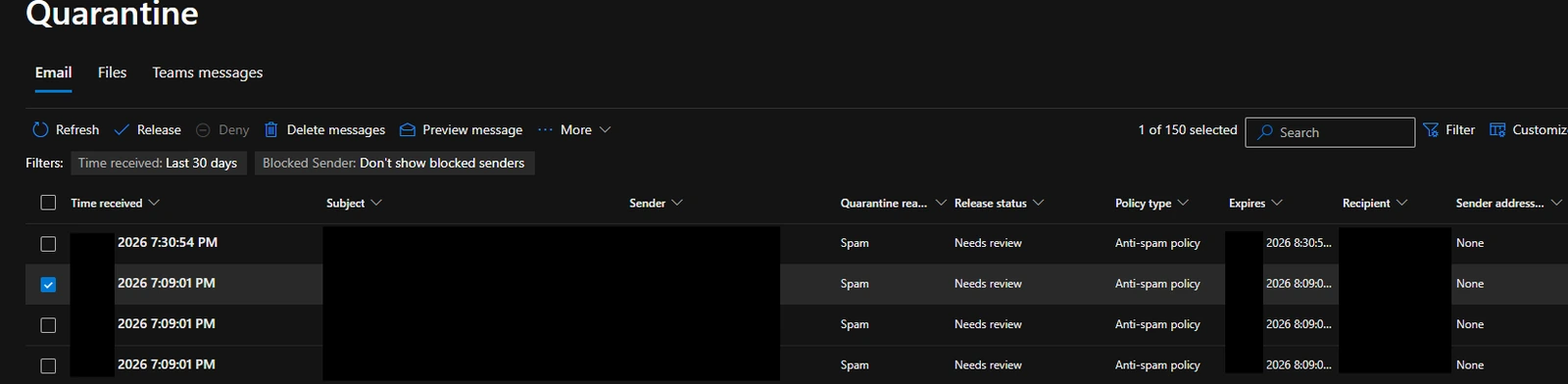
Any time, not just after a notificationClick the link in the notification, or go directly to security.microsoft.com/quarantine whenever you are chasing an email that should have turned up. You will see each held message with the date, the sender, the subject, and the reason it was held.
Narrow it to the right mailbox
If you use shared mailboxesThe portal shows quarantined mail for your own mailbox and for every shared mailbox you have been given access to, all in one list. If you are looking after accounts, info or a team inbox, that list can get long.
- Click Filter on the toolbar
- Enter the mailbox address in the Recipient Address field
- The list narrows to that mailbox only
Release what you recognise
Straight back to the inboxTick the messages you want and choose Release. The email is delivered to the mailbox it was originally addressed to, which includes a shared mailbox if that is where it was headed. Use Preview message first if you want to read it before deciding; previewing does not release anything.
When we have to release it for you
Administrator review requiredSome categories cannot be released by the recipient at all. If a message was classified as high confidence phishing, or as carrying malware, an administrator has to review it and confirm it is safe before it can be delivered. This is deliberate, and it is not something we can hand back to you: those two categories are where the real damage happens.
- Log a ticket to [email protected] with the sender and subject
- If it is time-critical, call us so we can review it immediately
- Tell us why you believe it is genuine; that context speeds the review up considerably
Filtering is a partnership.
Both ways- Filtering maintained and tuned on your behalf, without you having to think about it
- Held messages reviewed and released quickly when you ask
- A same-day answer on any message you are unsure about
- No blame, ever, for asking about an email that turns out to be harmless
- Use the buttons rather than ignoring the banner; the reports are what make filtering better
- Report phishing as Phish rather than just deleting it, so others are protected too
- Stop and ask when something feels off, especially anything about payments or bank details
- Tell us if a genuine sender is repeatedly blocked, so we can fix the cause and not just the symptom
Not sure about
an email?
Send it to us rather than deciding alone. For anything urgent, call the helpdesk on 09 974 2379 in New Zealand or +61 3 4803 4915 in Australia and we will review it straight away.




